# Alarms
# Alarm Overview
**There are three categories of alarms; Patient, Device, and System. The alarm level indicates the severity of the alarm.**
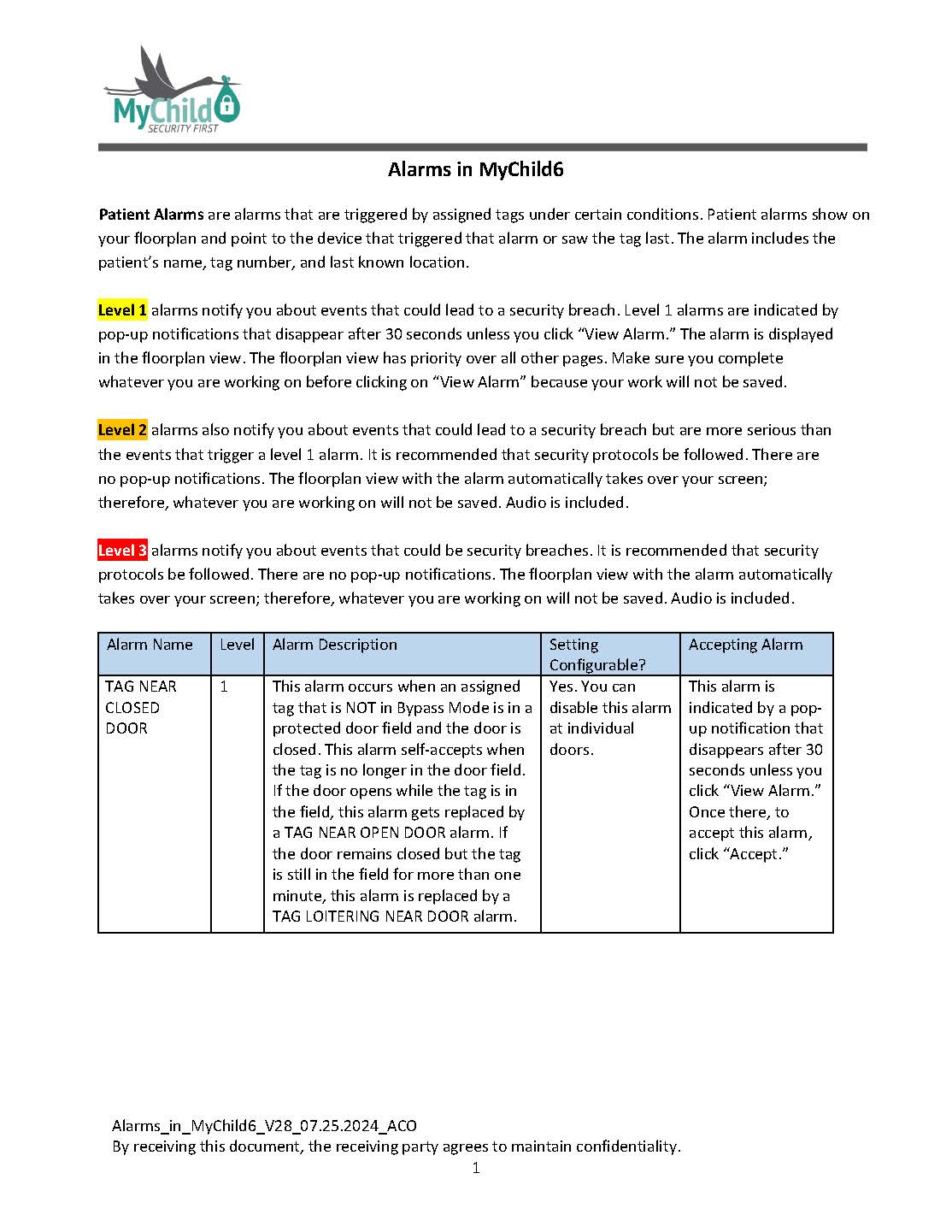
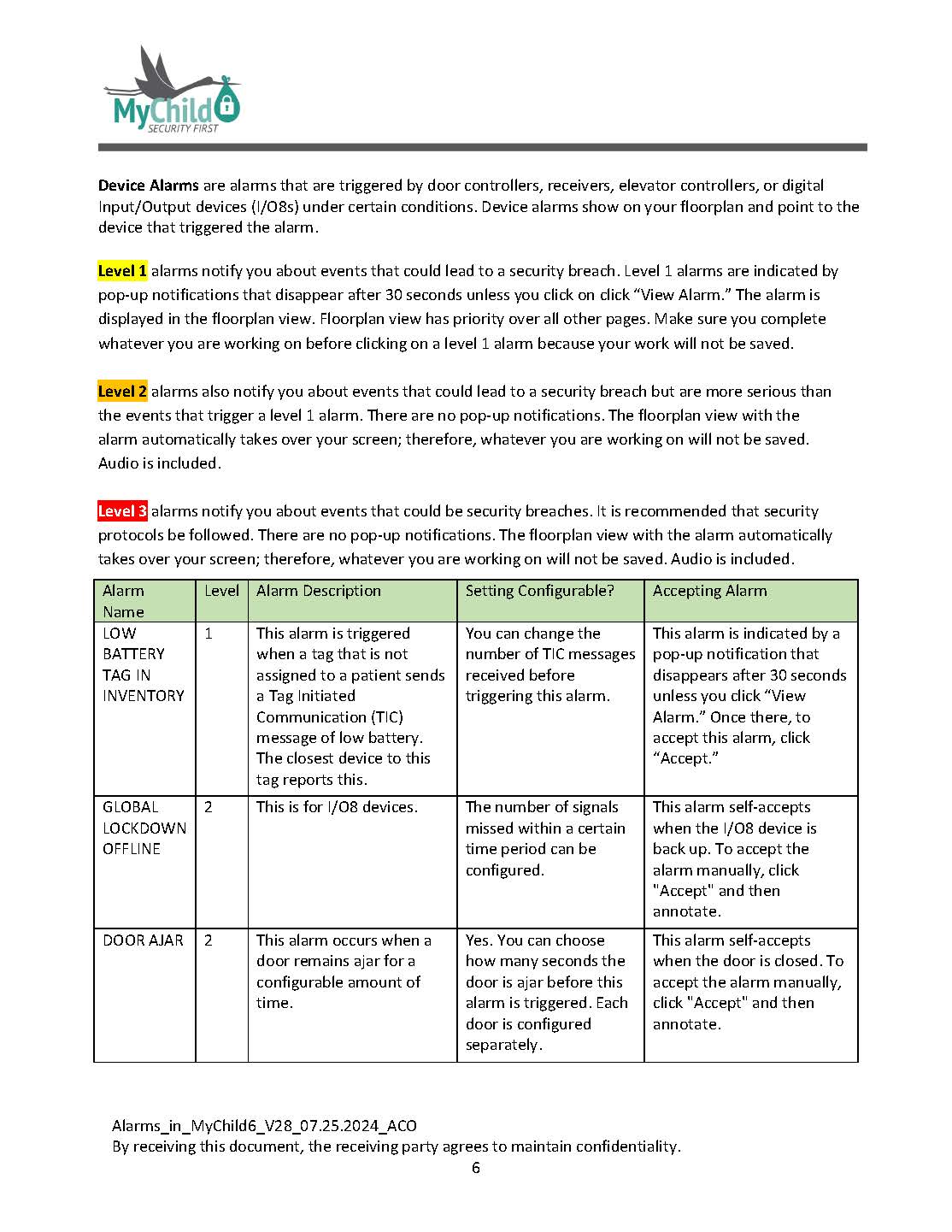
**Level 1** alarms notify you about events that could lead to a security breach. Level 1 alarms are indicated by pop-up notifications that disappear after 30 seconds unless you click “View Alarm.” The alarm is displayed in the floorplan view. The floorplan view has priority over all other pages. Make sure you complete whatever you are working on before clicking on “View Alarm” because your work will not be saved.
**Level 2** alarms also notify you about events that could lead to a security breach but are more serious than the events that trigger a level 1 alarm. It is recommended that security protocols be followed. There are no pop-up notifications. The floorplan view with the alarm automatically takes over your screen; therefore, whatever you are working on will not be saved. Audio is included.
**Level 3** alarms notify you about events that could be security breaches. It is recommended that security protocols be followed. There are no pop-up notifications. The floorplan view with the alarm automatically takes over your screen; therefore, whatever you are working on will not be saved. Audio is included.
**[Click here to download the MyChild6 Alarm Chart](https://help.mychildcloud.com/attachments/5)**
# Patient Alarms
##### **Patient Alarms** are alarms that are triggered by assigned tags under certain conditions. Patient alarms show on your floorplan and point to the device that triggered that alarm or saw the tag last. The alarm includes the patient’s name, tag number, and last known location.
### Level One Patient Alarms:
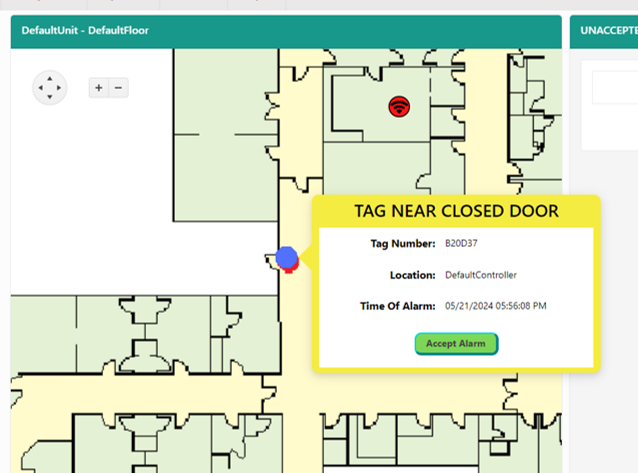
**Level 1** alarms notify you about events that could lead to a security breach. Level 1 alarms are indicated by pop-up notifications that disappear after 30 seconds unless you click “View Alarm.” The alarm is displayed in the floorplan view. The floorplan view has priority over all other pages. Make sure you complete whatever you are working on before clicking on “View Alarm” because your work will not be saved.
[](https://help.mychildcloud.com/uploads/images/gallery/2024-07/tag-near-closed-door.png)
TAG NEAR CLOSED DOOR
TAG CHECK-IN MISSED
### Level Two Patient Alarms
**Level 2** alarms also notify you about events that could lead to a security breach but are more serious than the events that trigger a level 1 alarm. It is recommended that security protocols be followed. There are no pop-up notifications. The floorplan view with the alarm automatically takes over your screen; therefore, whatever you are working on will not be saved. Audio is included.
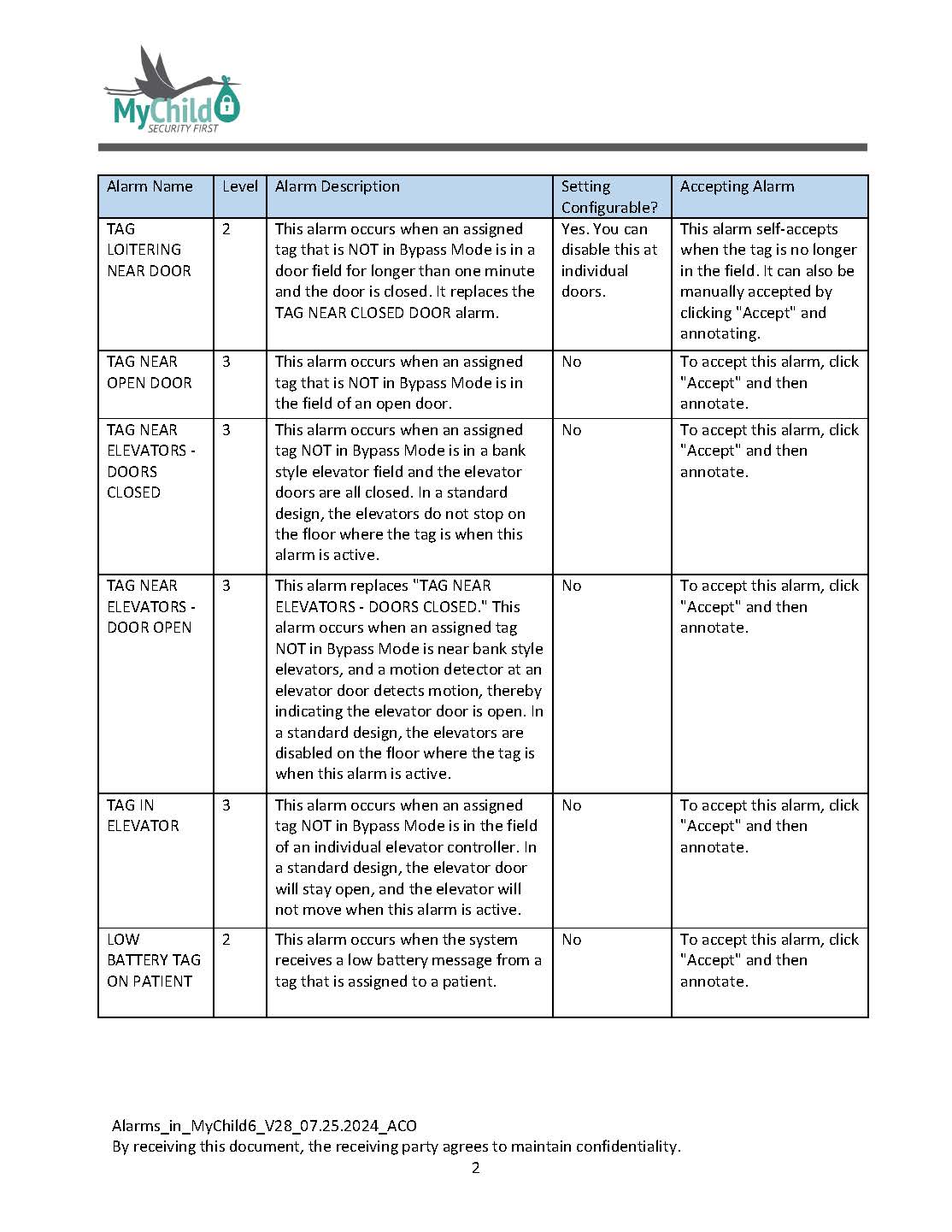
##### **TAG LOITERING NEAR DOOR:** This alarm occurs when an assigned tag that is NOT in Bypass Mode is in a door field for longer than one minute and the door is closed. It replaces the TAG NEAR CLOSED DOOR alarm.
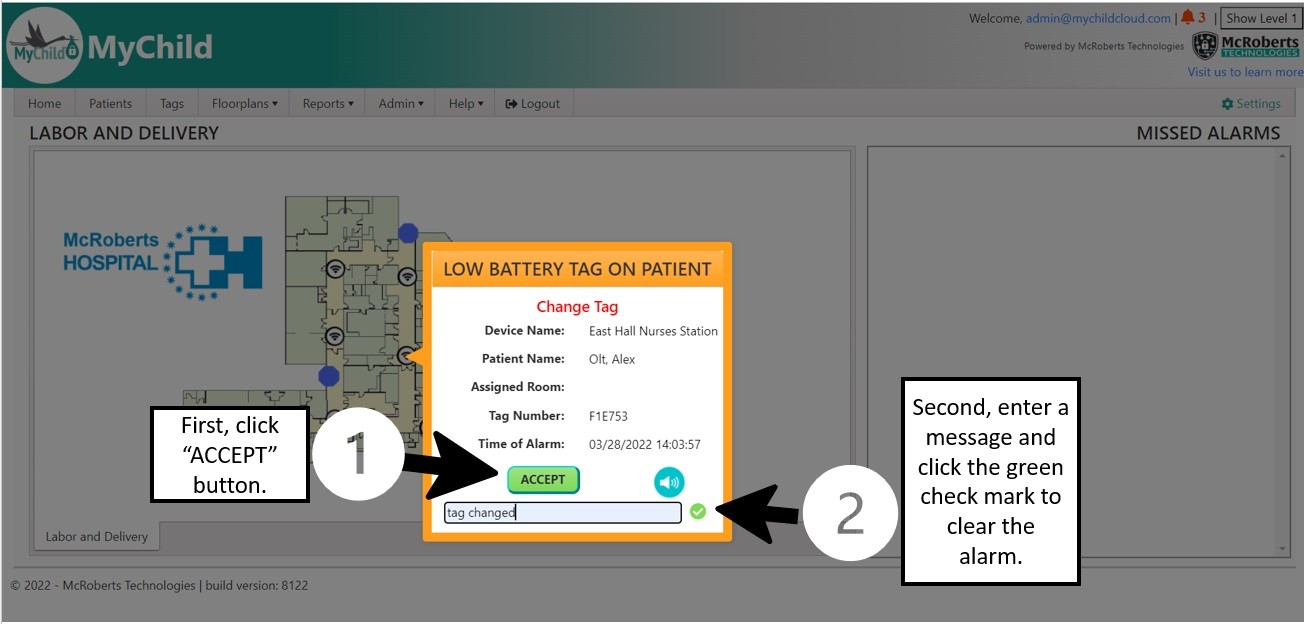
##### **LOW BATTERY TAG ON PATIENT**: This alarm occurs when the system receives a low battery message from a tag that is assigned to a patient.
[](https://help.mychildcloud.com/uploads/images/gallery/2022-05/low-battery-tag-on-patient.jpg)
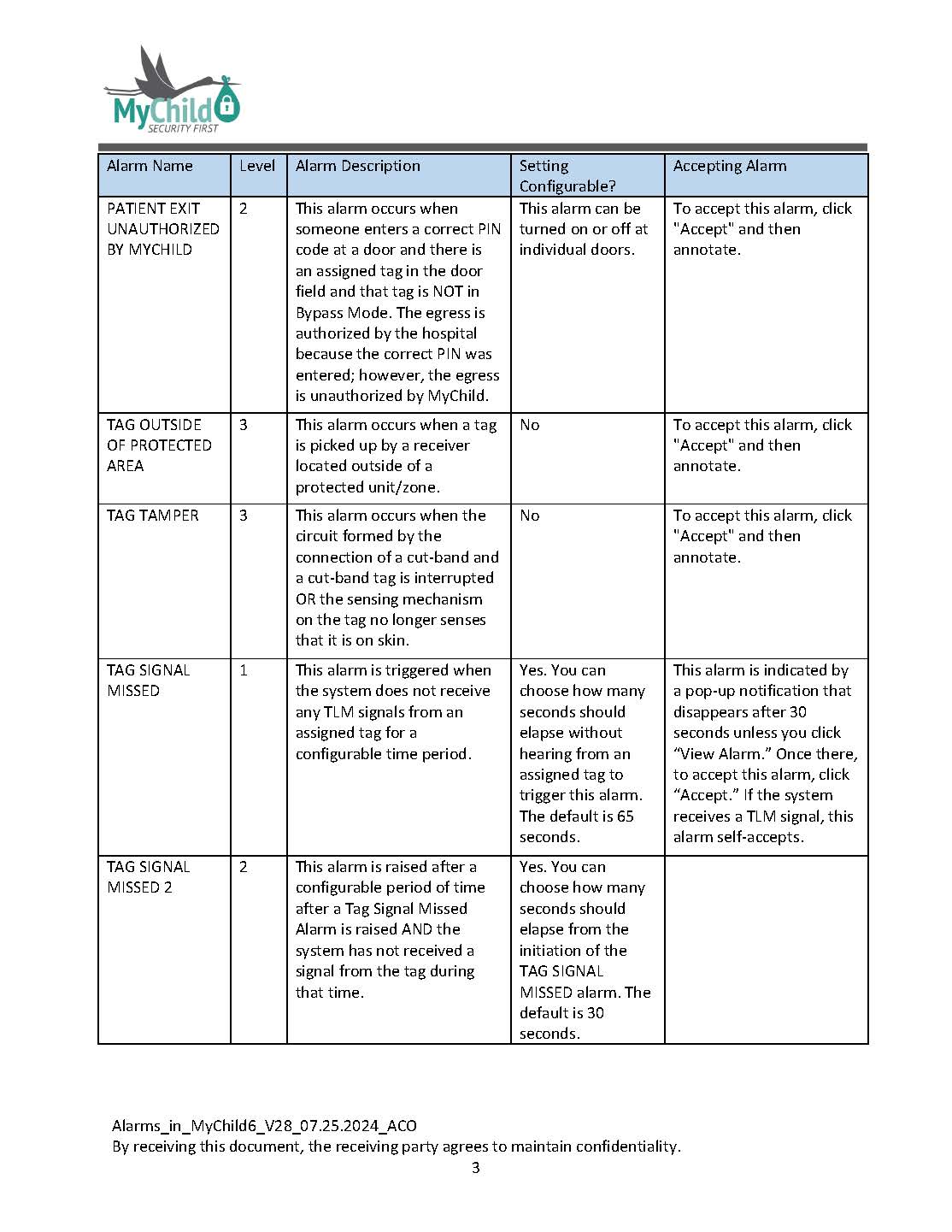
PATIENT UNAUTHORIZED BY MYCHILD
#### Level Three Patient Alarms:
TAG TAMPER
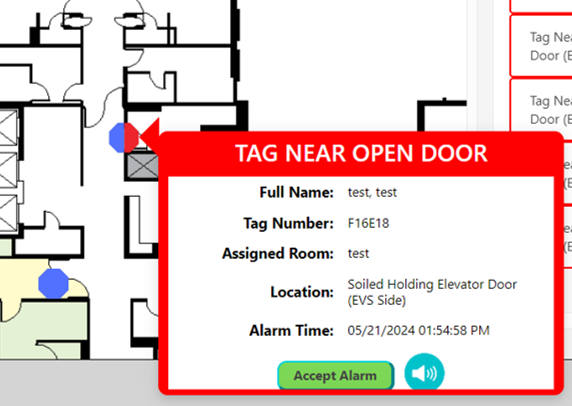
TAG NEAR OPEN DOOR
[](https://help.mychildcloud.com/uploads/images/gallery/2024-07/tag-near-open-door.png)
TAG NEAR ELEVATORS DOORS CLOSED
TAG NEAR ELEVATORS DOOR OPEN
TAG IN ELEVATOR
TAG OUT OF PROTECTED AREA
# Device Alarms
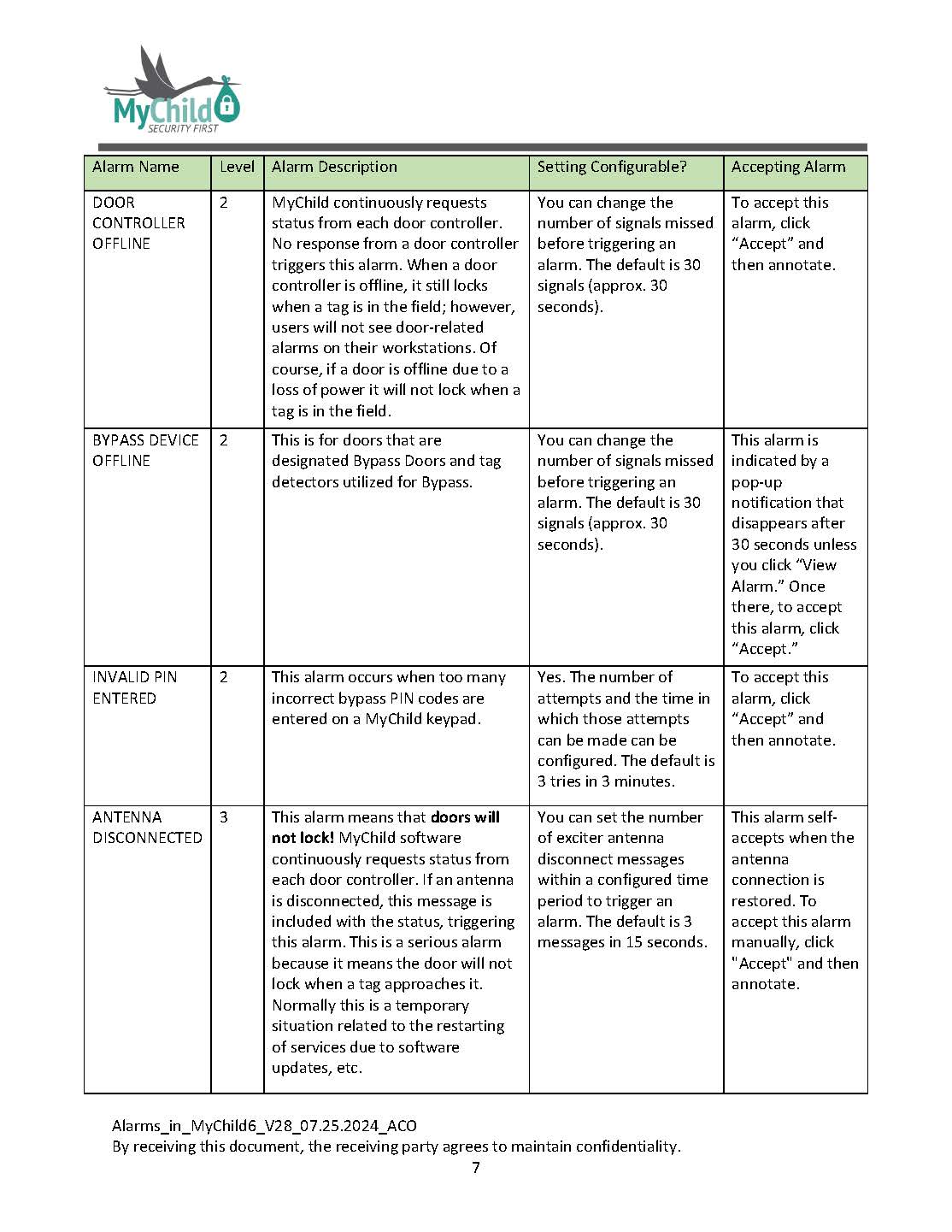
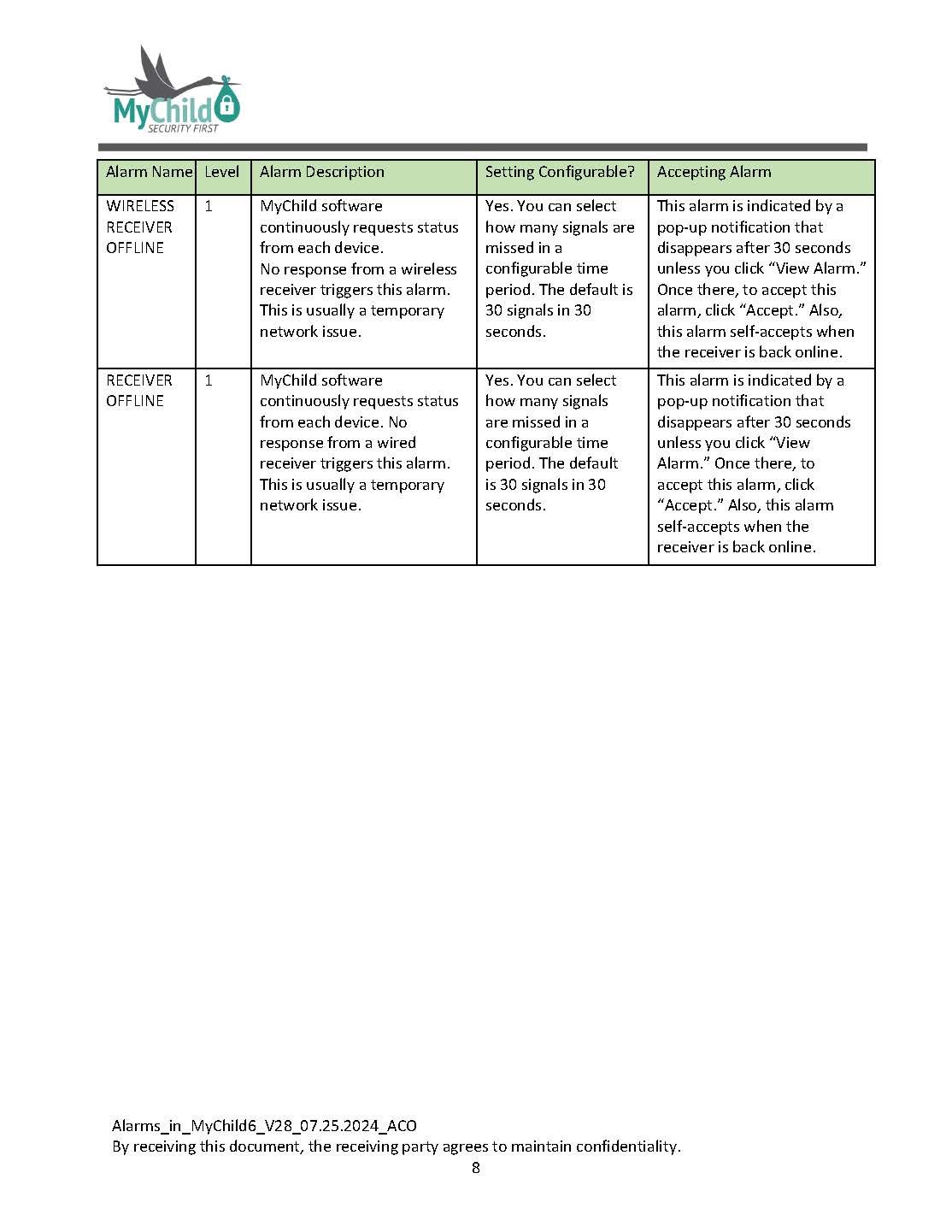
**Device** **Alarms** are alarms that are triggered by door controllers, receivers, elevator controllers, or digital Input/Output devices (I/O8s) under certain conditions. Device alarms show on your floorplan and point to the device that triggered the alarm.
# System Alarms
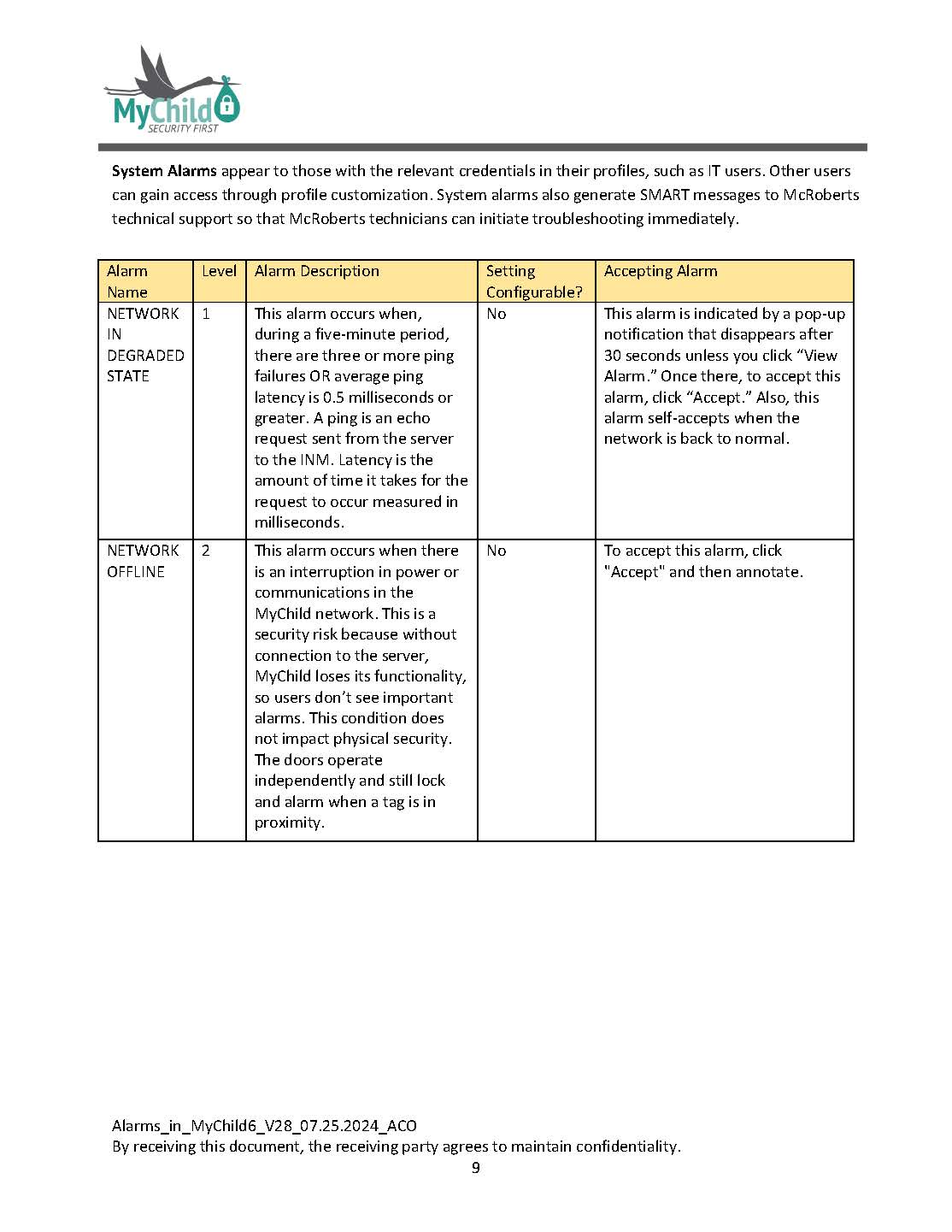
**System** **Alarms** appear to those with the relevant credentials in their profiles, such as IT users. Other users can gain access through profile customization. System alarms also generate SMART messages to McRoberts technical support so that McRoberts technicians can initiate troubleshooting immediately.
# Alarm Chart
[](https://help.mychildcloud.com/uploads/images/gallery/2024-07/alarms-in-mychild6-v28-07-25-2024-aco-page-01.jpg)
[](https://help.mychildcloud.com/uploads/images/gallery/2024-07/alarms-in-mychild6-v28-07-25-2024-aco-page-02.jpg)
[](https://help.mychildcloud.com/uploads/images/gallery/2024-07/alarms-in-mychild6-v28-07-25-2024-aco-page-03.jpg)
[](https://help.mychildcloud.com/uploads/images/gallery/2024-07/alarms-in-mychild6-v28-07-25-2024-aco-page-04.jpg)
[](https://help.mychildcloud.com/uploads/images/gallery/2024-07/alarms-in-mychild6-v28-07-25-2024-aco-page-05.jpg)
[](https://help.mychildcloud.com/uploads/images/gallery/2024-07/alarms-in-mychild6-v28-07-25-2024-aco-page-06.jpg)
[](https://help.mychildcloud.com/uploads/images/gallery/2024-07/alarms-in-mychild6-v28-07-25-2024-aco-page-07.jpg)
[](https://help.mychildcloud.com/uploads/images/gallery/2024-07/alarms-in-mychild6-v28-07-25-2024-aco-page-08.jpg)
[](https://help.mychildcloud.com/uploads/images/gallery/2024-07/alarms-in-mychild6-v28-07-25-2024-aco-page-09.jpg)
[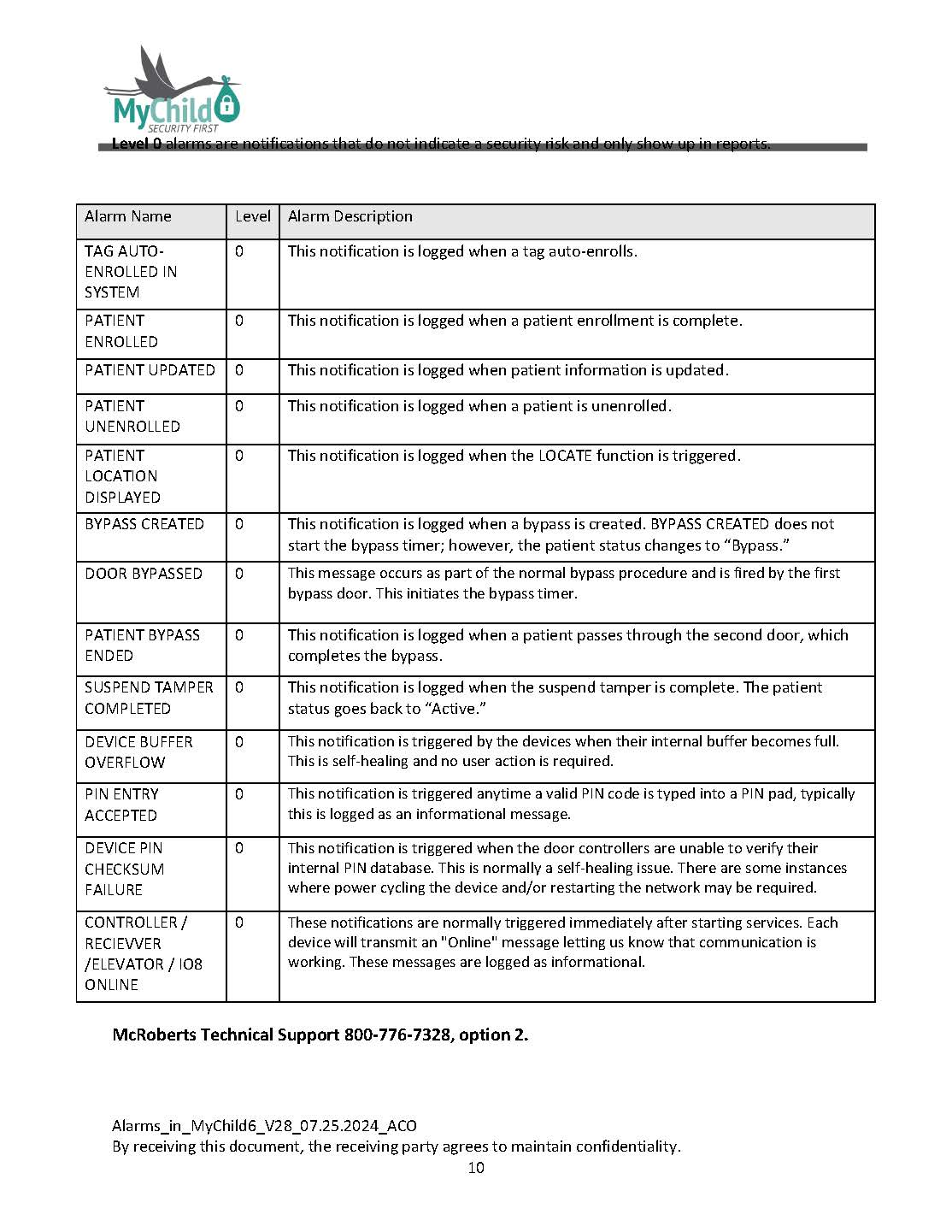](https://help.mychildcloud.com/uploads/images/gallery/2024-07/alarms-in-mychild6-v28-07-25-2024-aco-page-10.jpg)
[Click here to download the Alarms Chart](https://help.mychildcloud.com/attachments/25)