# Microsoft SQL Management Studio Deployment Guide
#### Finding the Installer
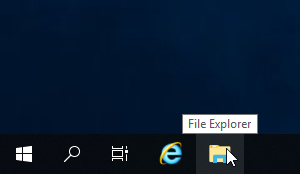
To begin this installation please navigate to the File Explorer on the server in question by either selecting the File Explorer icon on the Task Bar as shown below:
[](https://help.mychildcloud.com/uploads/images/gallery/2022-03/installingsqlformst6-2.png)
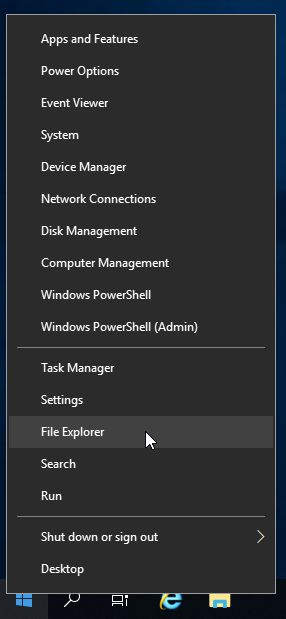
Or by right clicking the Start Menu (Windows icon) on the task bar as shown below:
[](https://help.mychildcloud.com/uploads/images/gallery/2022-03/installingsqlformst6-1.png)
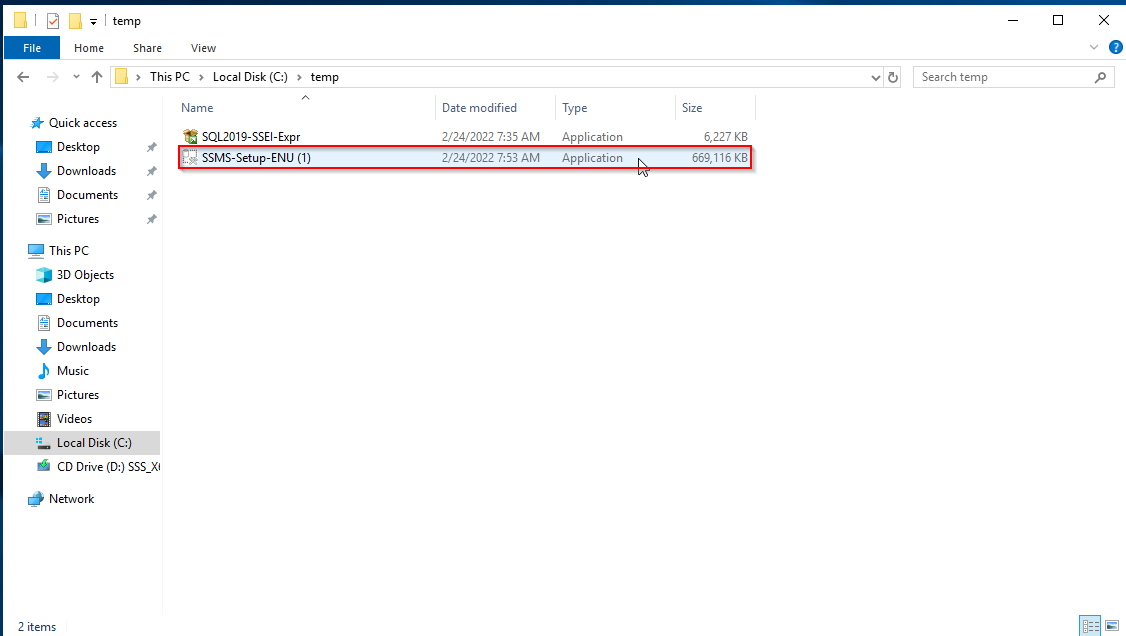
You will then need to navigate to This PC (Found in the Quick Access Menu on the left in the File Explorer) > Local Disk (C:) >temp
Or C:\\temp.
[](https://help.mychildcloud.com/uploads/images/gallery/2022-03/installingsqlformst6-11-5.png)
You will then need to select the SMSS-Setup-ENU application and double click it.
#### Selecting the Installation Location
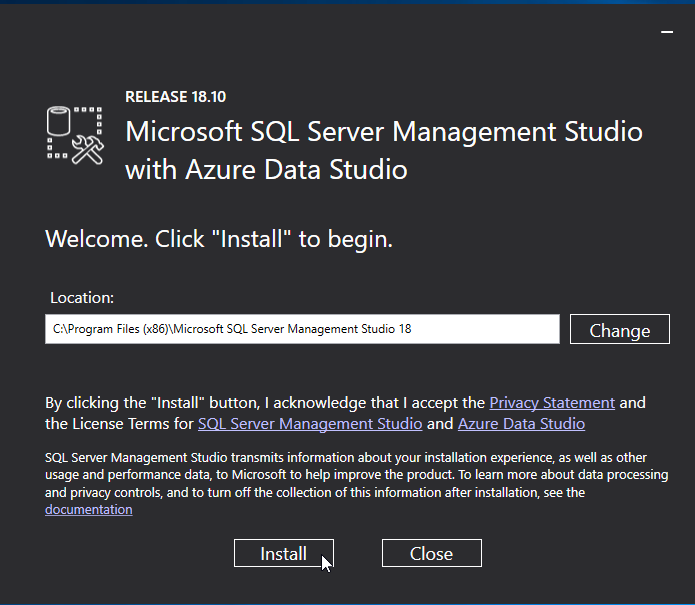
Unless other wise instructed by your supervisor, install in the default location.
[](https://help.mychildcloud.com/uploads/images/gallery/2022-03/installingsqlformst6-12-5.png)
Once the intended installation location has been selected select Install.
#### The Installation
[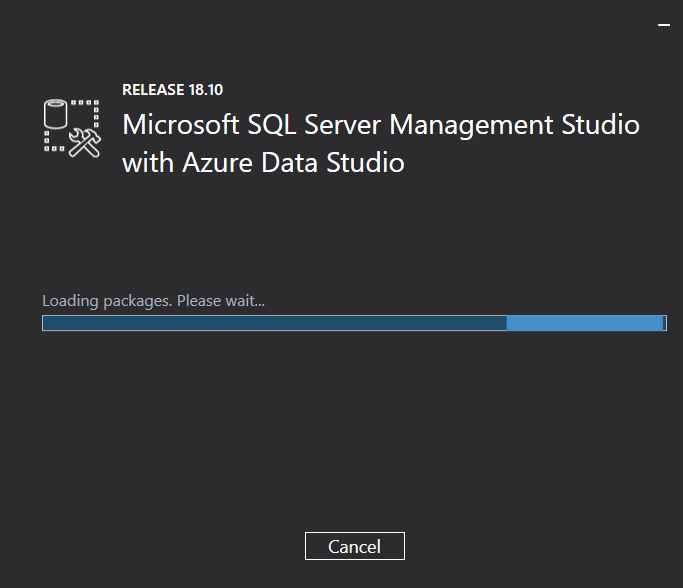](https://help.mychildcloud.com/uploads/images/gallery/2022-03/installingsqlformst6-13-5.png)
The installation has two phases, loading the packages and installing the packages.
[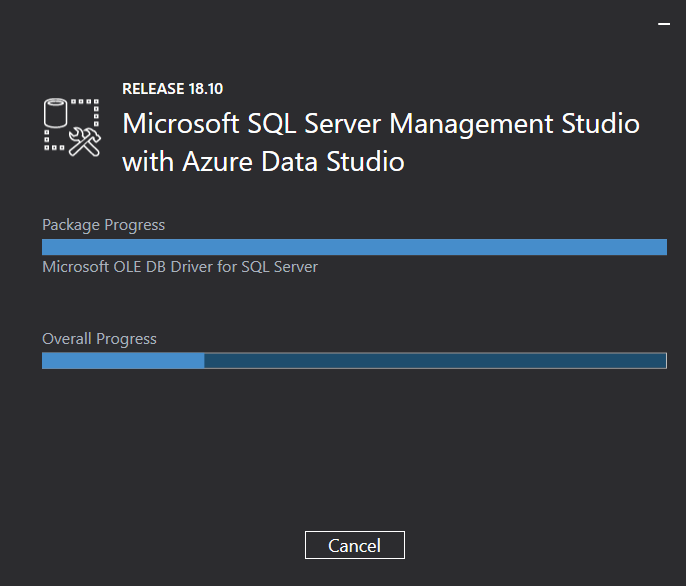](https://help.mychildcloud.com/uploads/images/gallery/2022-03/installingsqlformst6-14-5.png)
NOTE: This may take a few minutes.
#### Finishing the Installation
Once the installation is finished, you will need to restart the server which can be done through the installer.
[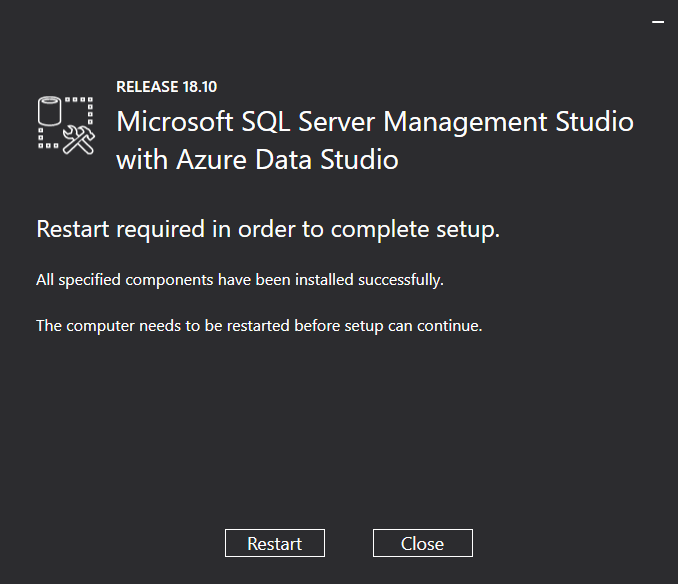](https://help.mychildcloud.com/uploads/images/gallery/2022-03/installingsqlformst6-15-5.png)
#### Locating the Microsoft SQL Server Management Studio
After restarting the server you can open the Microsoft SQL Server Management Studio by clicking on the start menu and navigating to the M section and selecting it.
[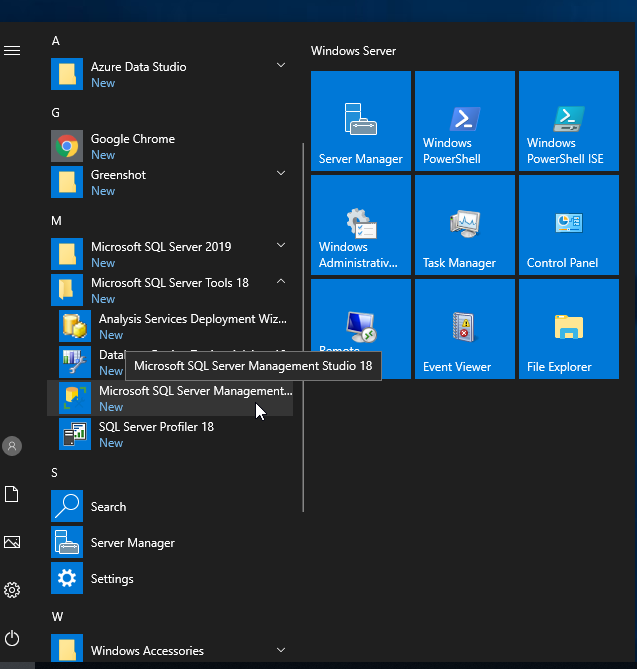](https://help.mychildcloud.com/uploads/images/gallery/2022-03/installingsqlformst6-16.png)