# Microsoft SQL Server Deployment Guide
#### Finding the Installer
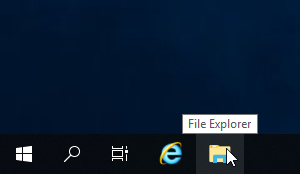
To begin this installation please navigate to the File Explorer on the server in question by either selecting the File Explorer icon on the Task Bar as shown below:
[](https://help.mychildcloud.com/uploads/images/gallery/2022-03/installingsqlformst6-2.png)
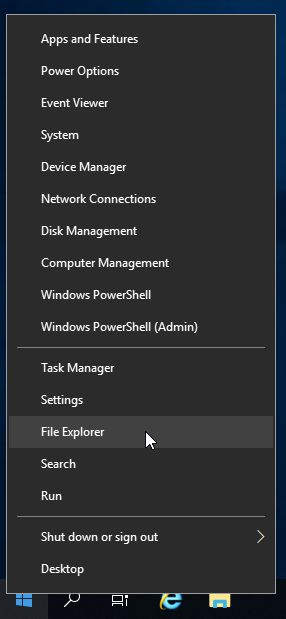
Or by right clicking the Start Menu (Windows icon) on the task bar as shown below:
[](https://help.mychildcloud.com/uploads/images/gallery/2022-03/installingsqlformst6-1.png)
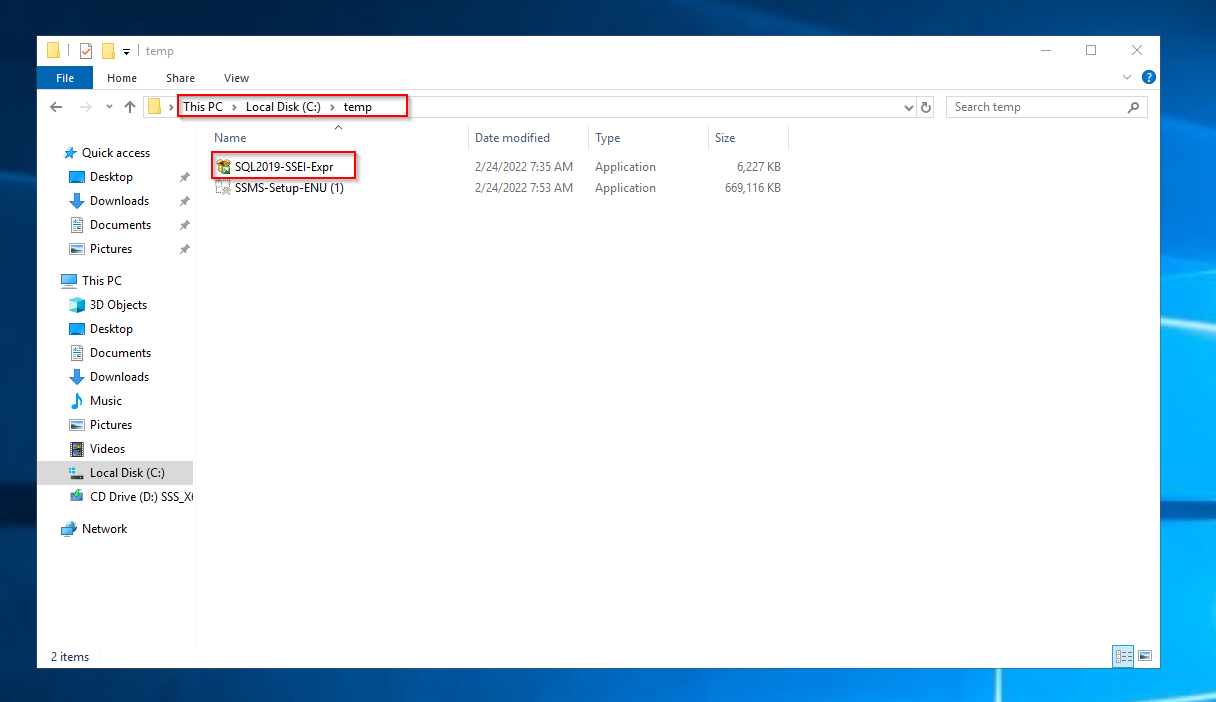
You will then need to navigate to This PC (Found in the Quick Access Menu on the left in the File Explorer) > Local Disk (C:) >temp
Or C:\\temp.
[](https://help.mychildcloud.com/uploads/images/gallery/2022-03/installingsqlformst6-3.png)
You will then select the SQL2019-SSEI-Expr application and double click it.
####
#### Selecting the Installation Type
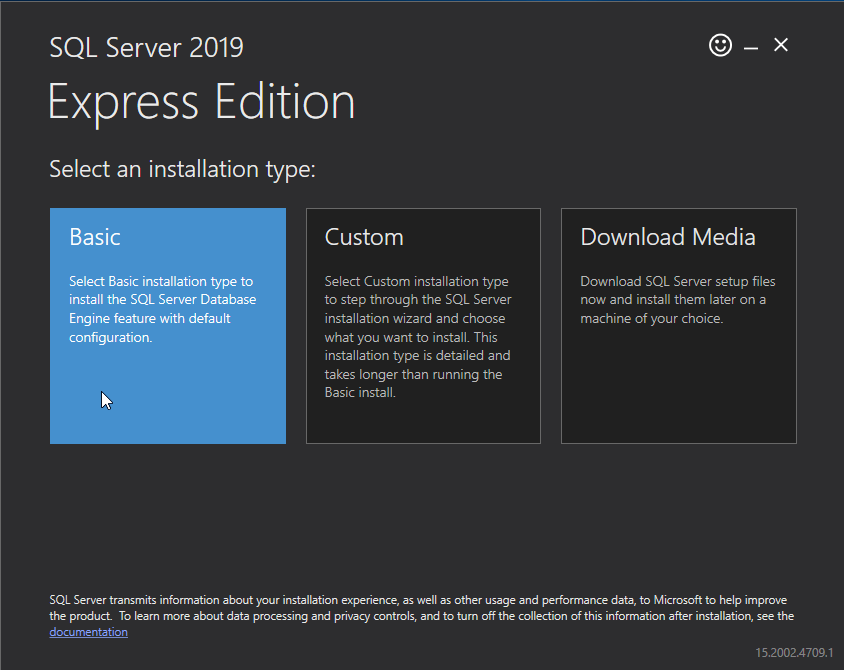
Please select the Basic installation option.
[](https://help.mychildcloud.com/uploads/images/gallery/2022-03/installingsqlformst6-4-5.png)
#### Accepting the Server License Terms
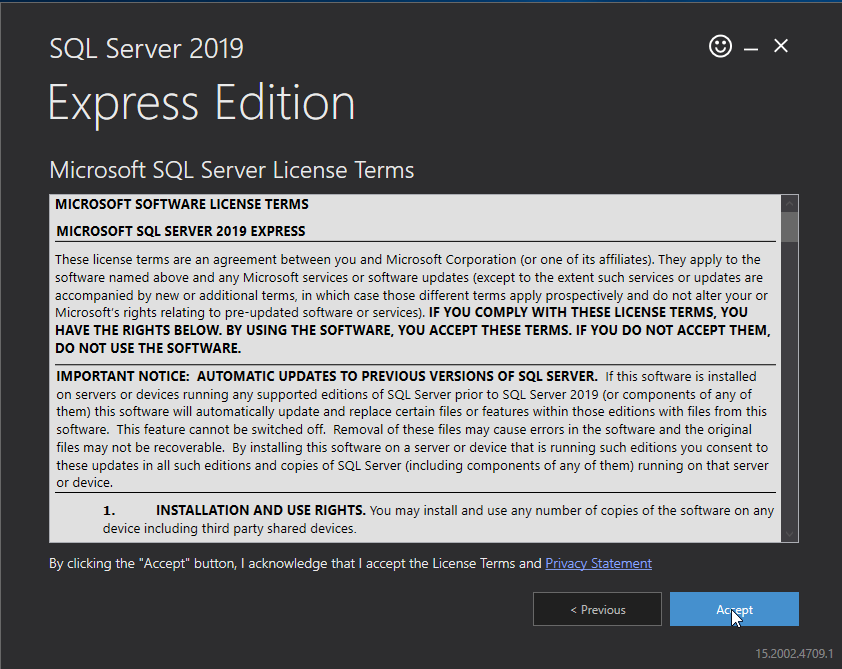
Accept the Microsoft SQL Server License Terms by selecting Accept at the bottom.
[](https://help.mychildcloud.com/uploads/images/gallery/2022-03/installingsqlformst6-5-5.png)
#### Selecting the Installation Location
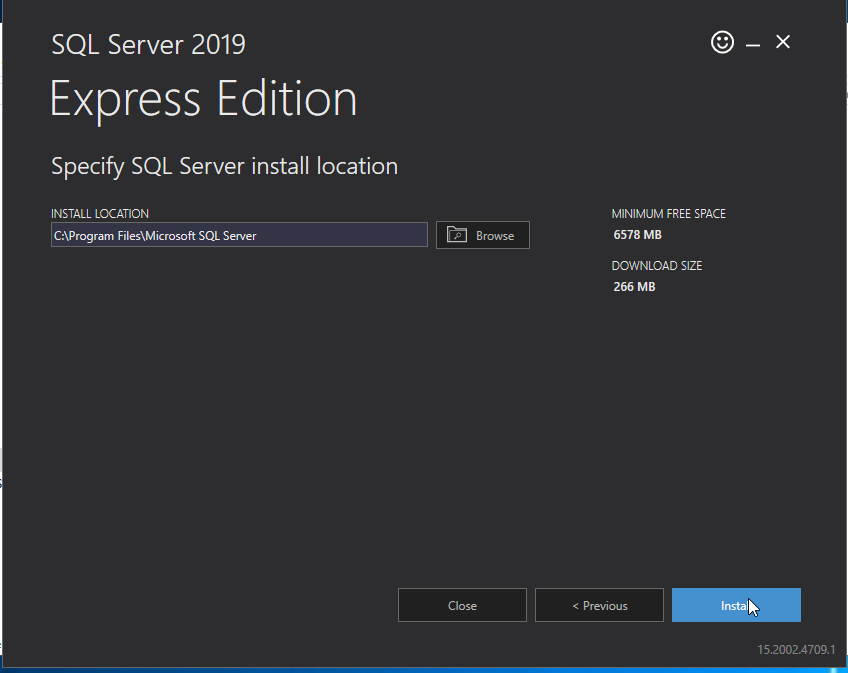
Unless otherwise instructed by your supervisor allow the default installation location to be used and select Install.
[](https://help.mychildcloud.com/uploads/images/gallery/2022-03/installingsqlformst6-6-5-3.png)
#### The Installation
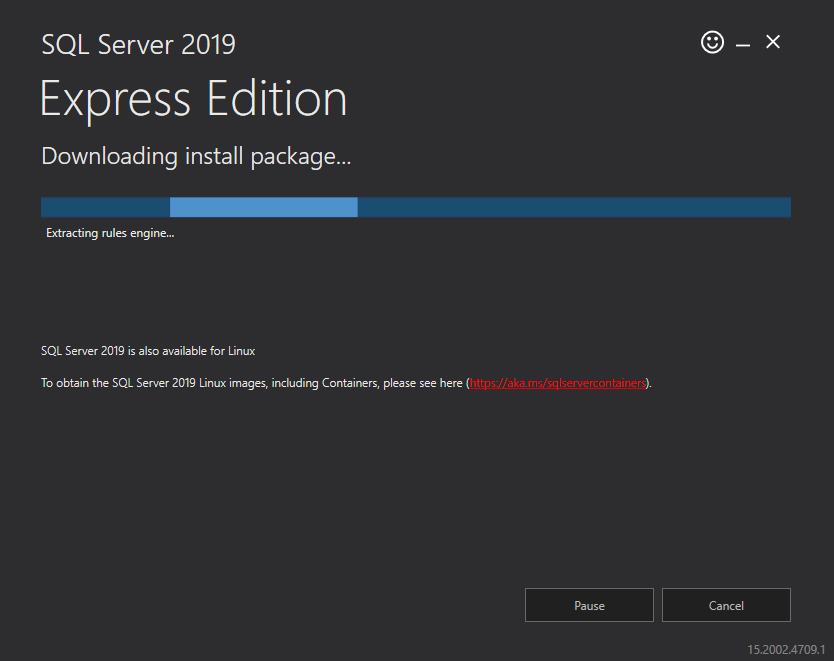
The installer will then download the files needed for installation.
[](https://help.mychildcloud.com/uploads/images/gallery/2022-03/installingsqlformst6-7-5.png)
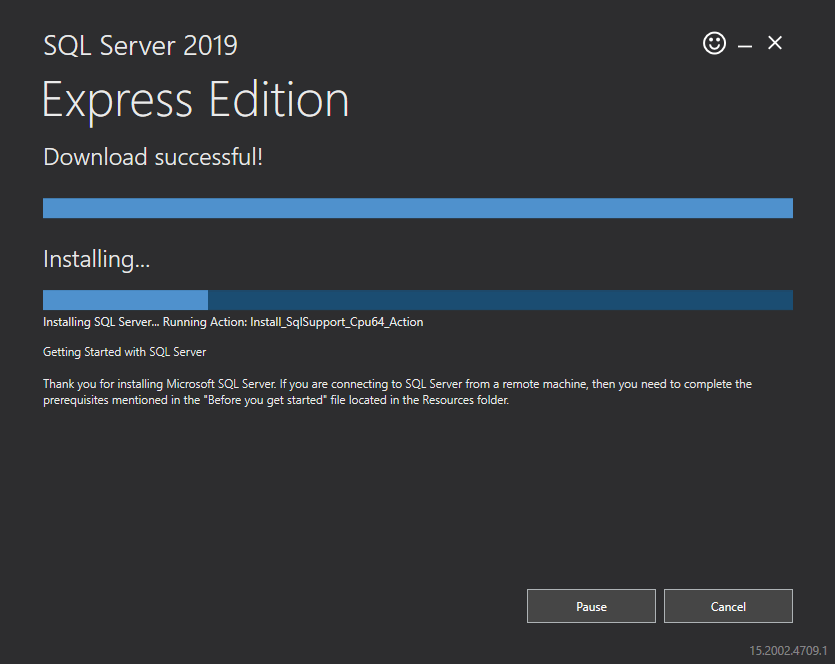
After downloading the installation files the installation will begin.
NOTE: This could take several minutes.
[](https://help.mychildcloud.com/uploads/images/gallery/2022-03/installingsqlformst6-8-5.png)
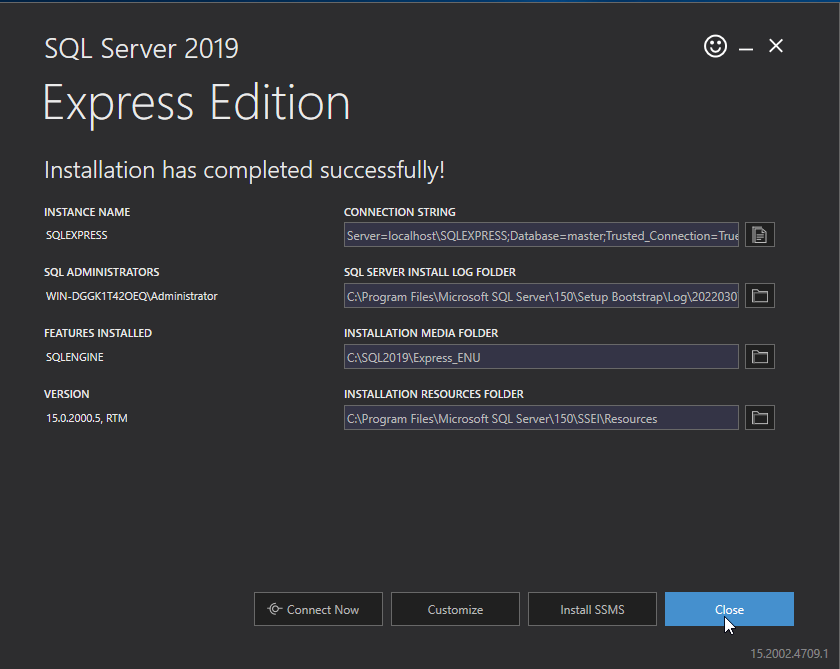
#### Finishing the Installation
Once the installation is complete Close the installer.
[](https://help.mychildcloud.com/uploads/images/gallery/2022-03/installingsqlformst6-10-5.png)