MyChild6 Desktop App Configuration
The MyChild6 Desktop application has several configuration options available. To access the configuration settings, follow these instructions.
Start by opening the application. Once open and loaded, Press "Ctrl + F11". This will cause the menu bar to be displayed. From the menu bar, click File & Configuration. See below.
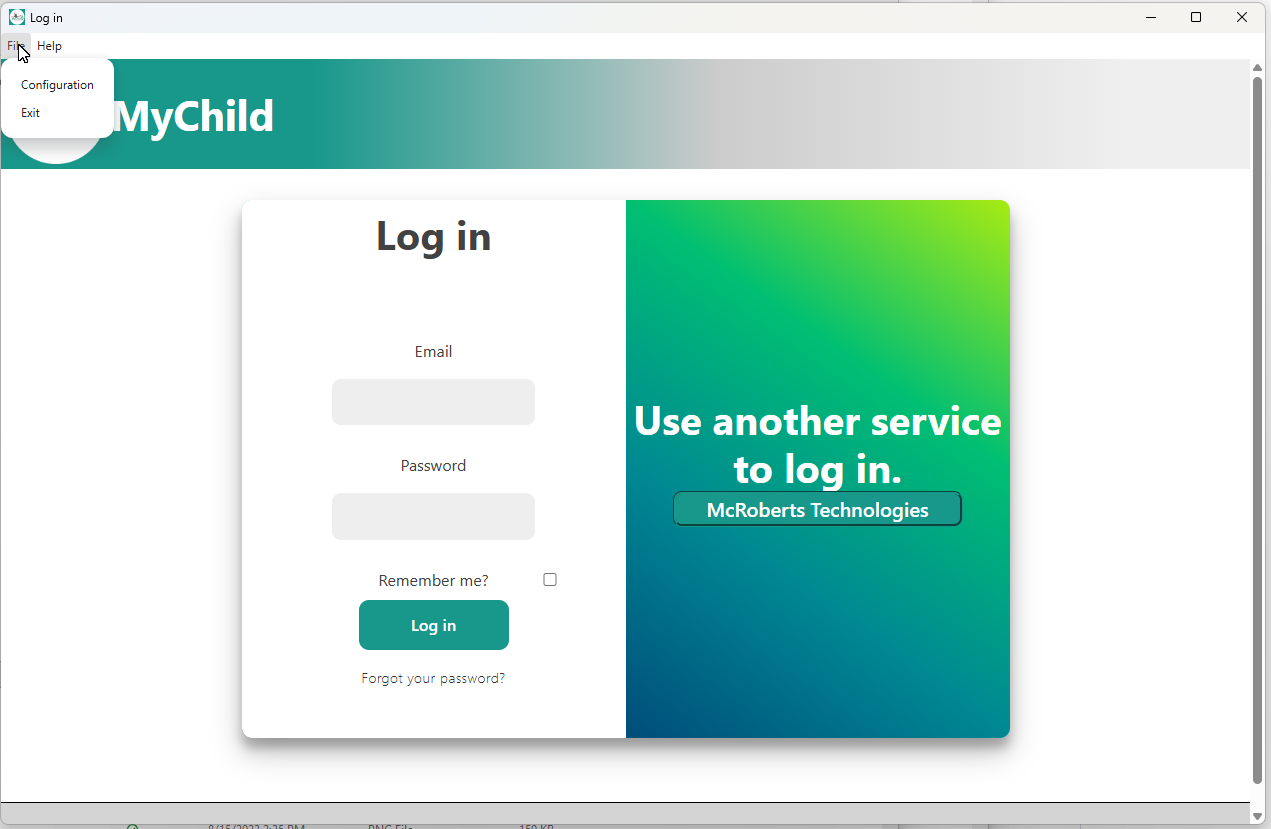
After you click the configuration button, a new popup window should open. See below.
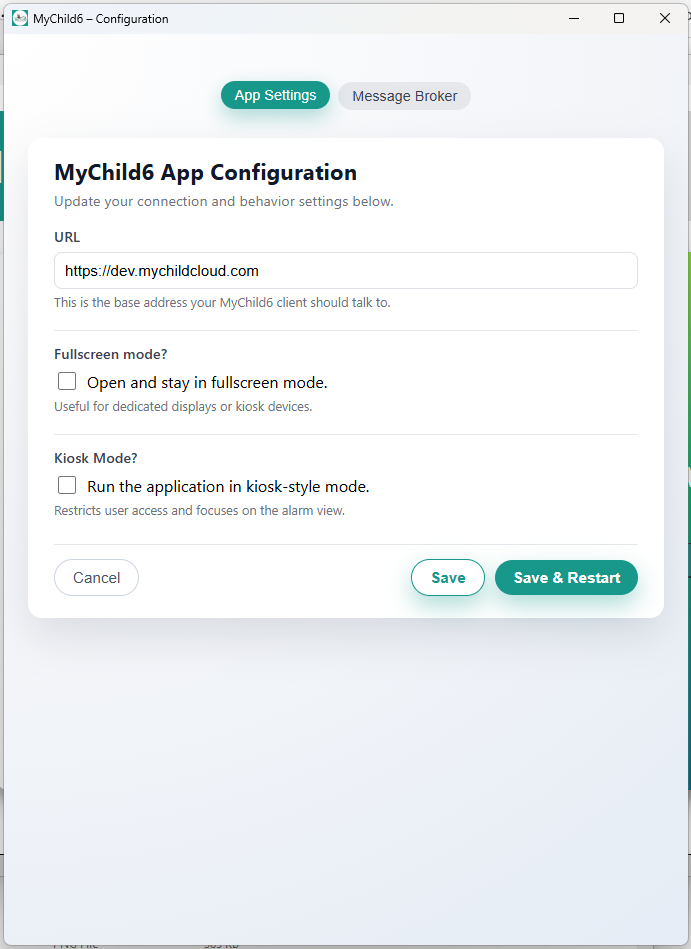
On the App Settings tab you can configure the following:
- URL
- This is the URL for the MyChild6 Application.
- Fullscreen Mode
- When activated, the application will start in full screen and will attempt to remain in front of all other windows.
- Kiosk Mode
- This user account has limited permissions, and is used to monitor the system for alarms.
- Note: you will need a username & password when configuring Kiosk Mode!
The Message Broker tab allows you to configure the application to capture alarm messages directly from the MyChild6 Message Broker and display them as Windows Notifications. This helps to ensure that alarms are not missed.
To configure the Message Queue options, you will need the following information from your MyChild6 System Administrator.
- Message Queue Host (Normally the MyChild6 Server)
- Message Queue Port (Normally 5672)
- Message Queue Username
- Message Queue Password
- Message Queue Vhost
The "Message Queue Client Name" can be set to anything. A good idea would be the name of the computer running the software.
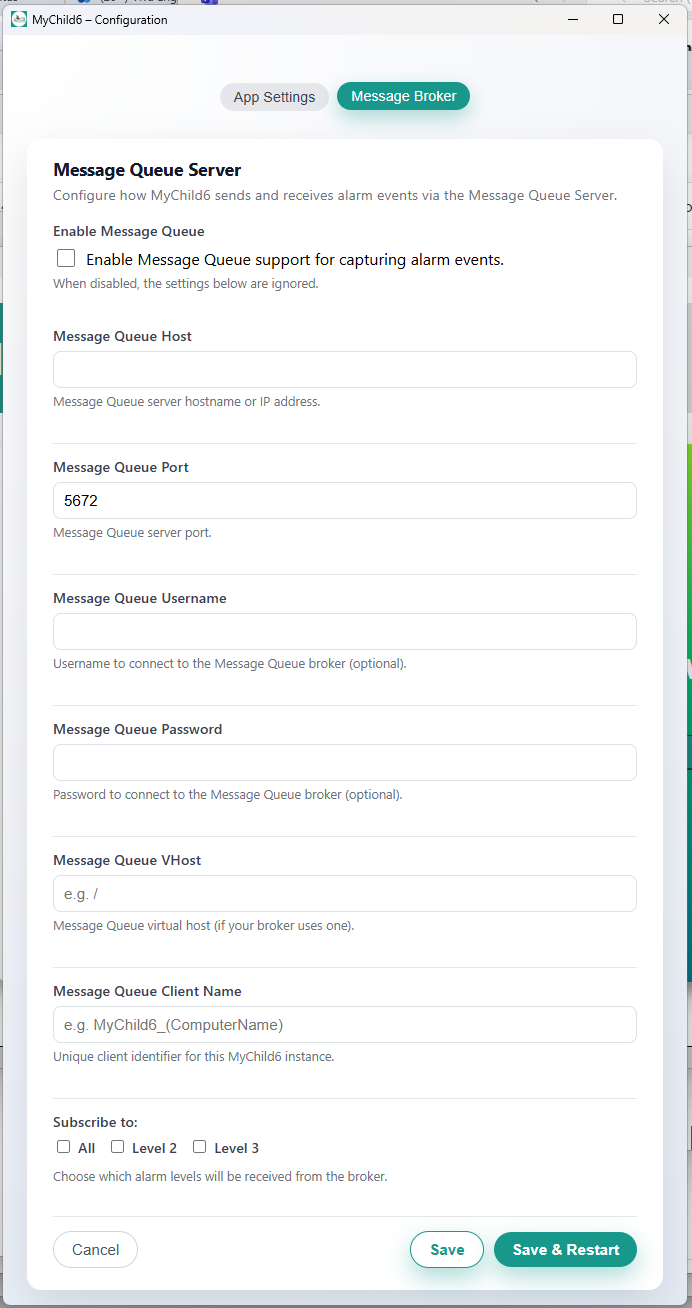
Once you have configured all the options click "Save & Restart".