
How To: Receive Text & Email Notifications from MyChild
Users of the MyChild 5 software can opt in to receive notifications via e-mail and/or text message by following the following process.
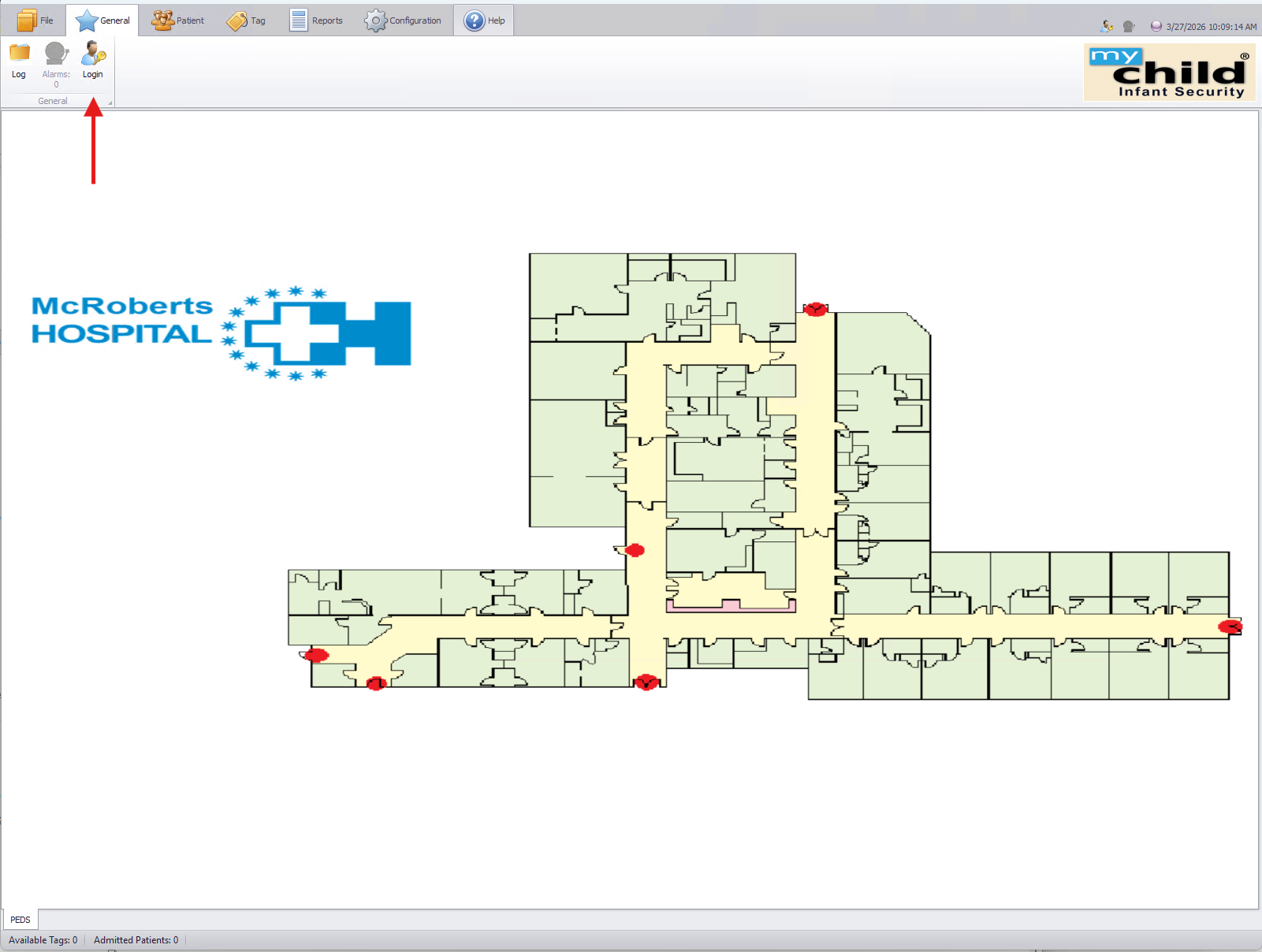
First login to the system by clicking "Login".
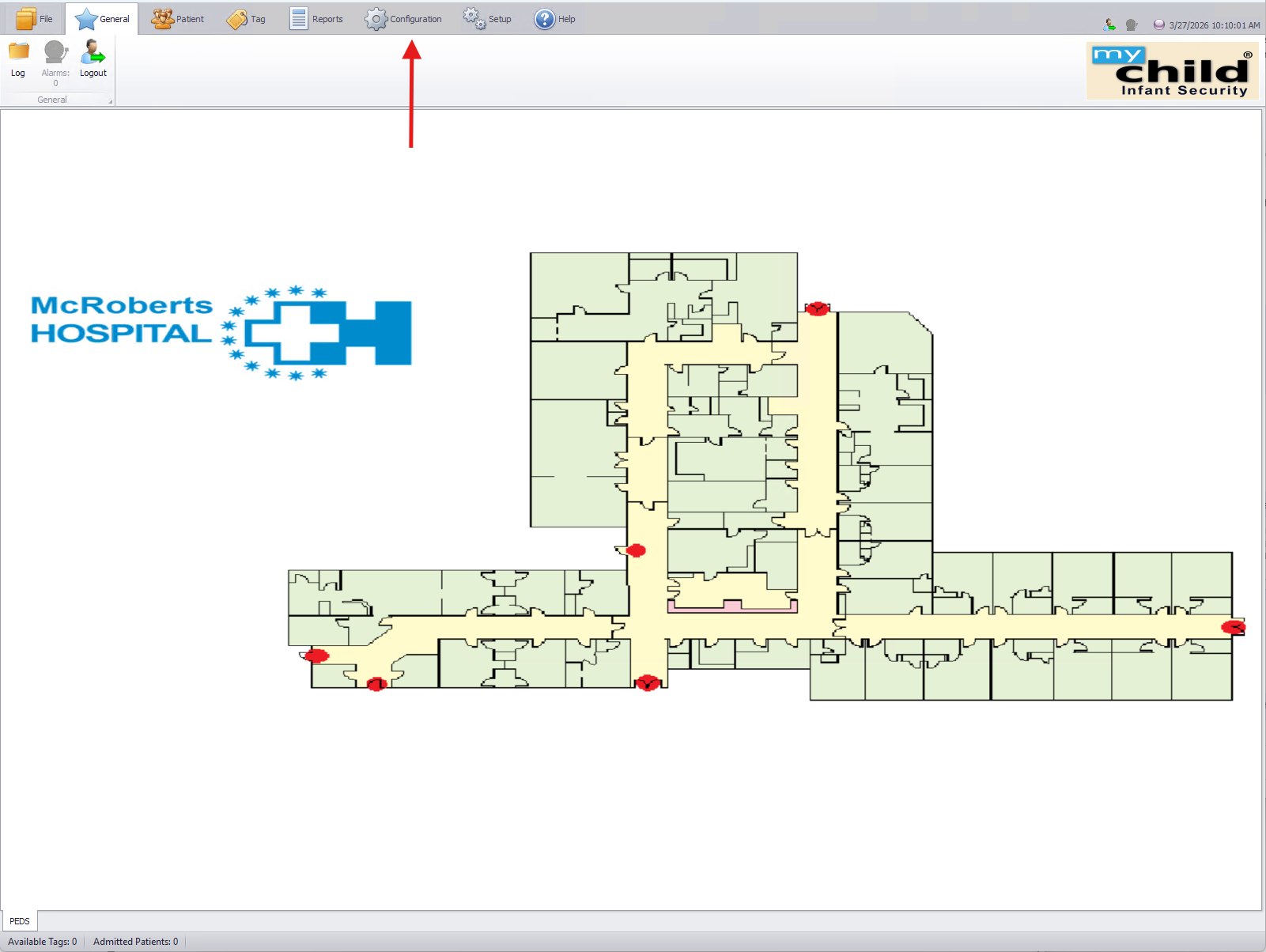
Once logged into the system, click on the "Configuration" tab.
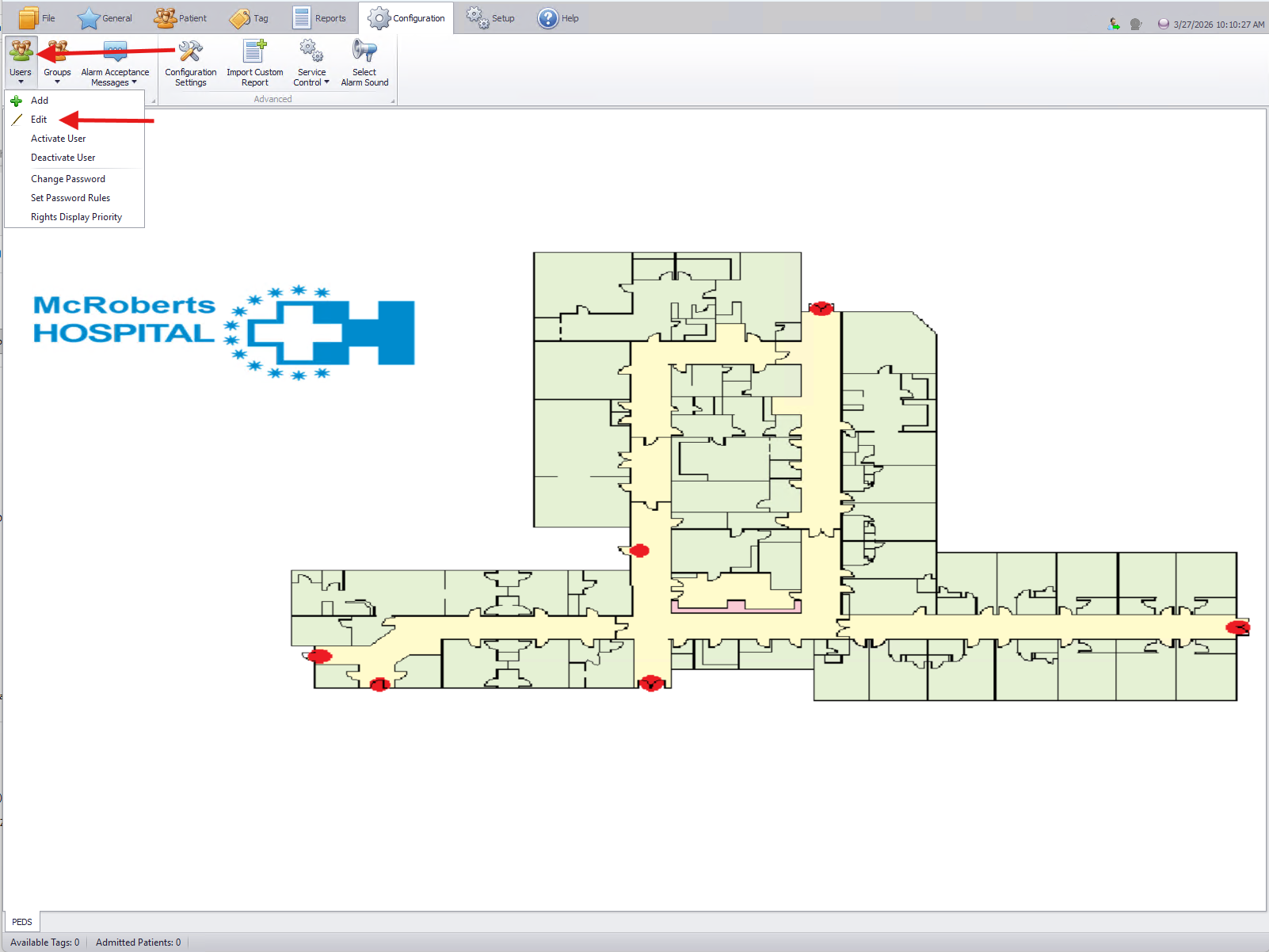
Once on the Configuration tab, click on "Users" and then "Edit".
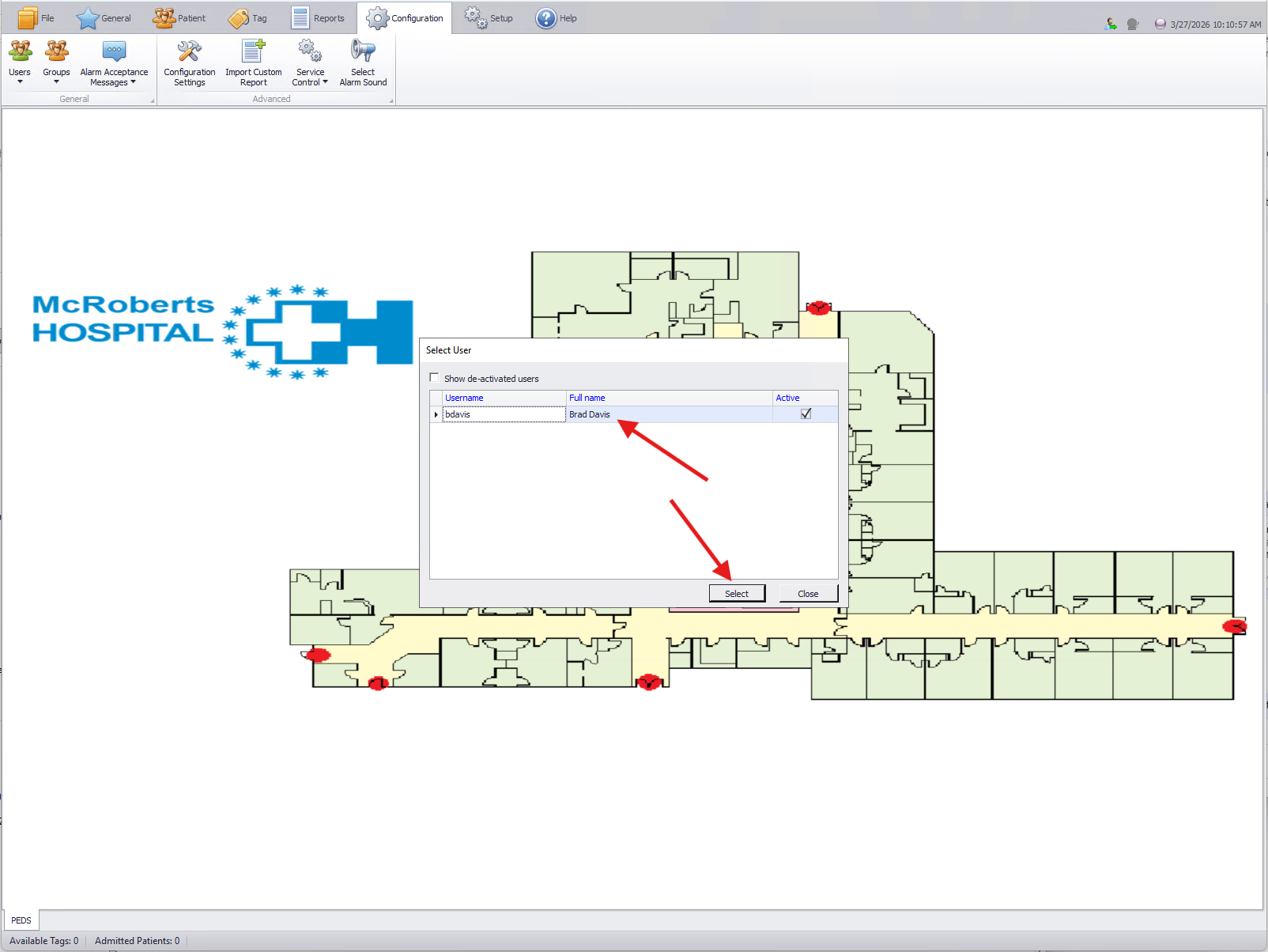
Select your user account from the popup as shown below.
On the edit user wizard, you will check the box marked "SMS Message / Email Alert".
Once selected the user can then enter the Email address and/or Phone number where messages should be sent.
Next the user will select what Severity levels (Alarm and/or warning) that they want to receive.
The user will select specific events they wish to receive.
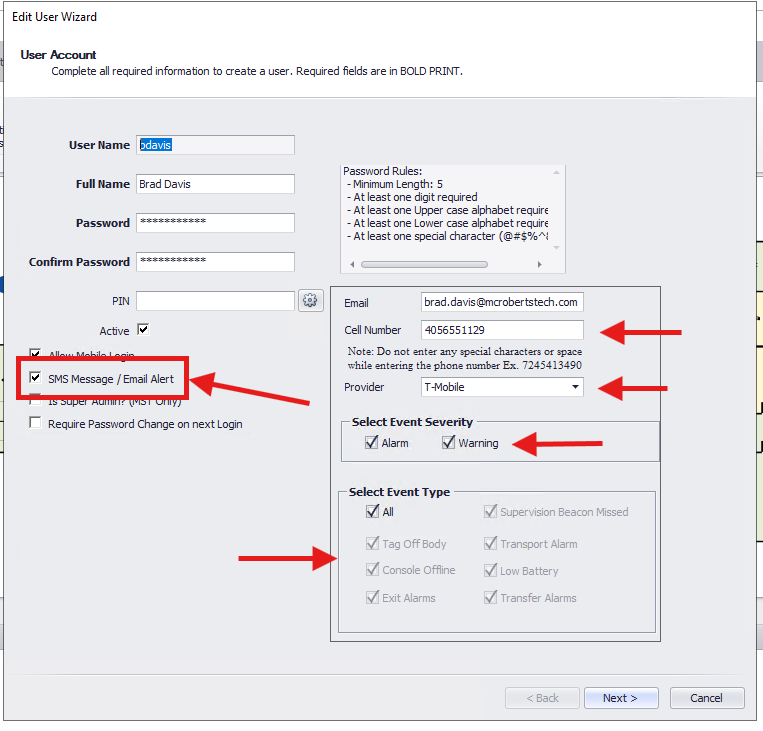
Once all information is entered, click Next to select user permissions.
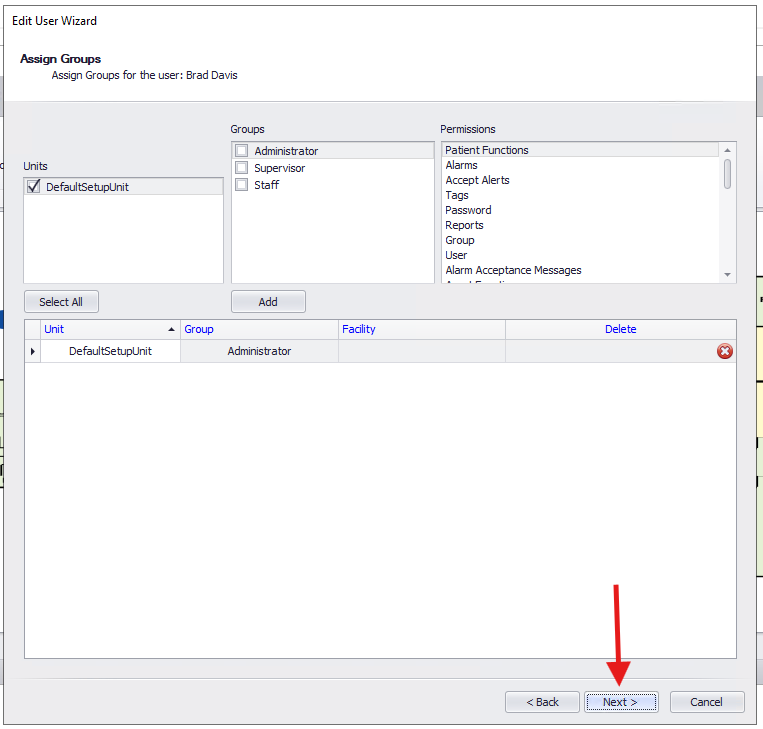
Review and update (if needed) user permissions, and then click next.
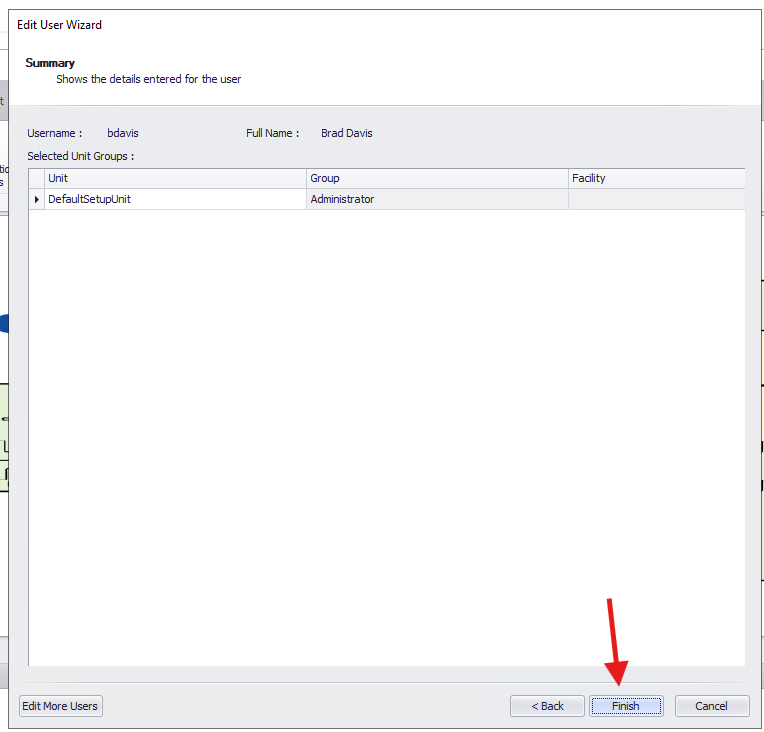
Verify everything has been entered correctly and click "Finish".
The user has now opted into receiving Emails and/or Text messages from the MyChild5 System.
No Comments