
Installing the MyChild6 Desktop Application
The MyChild6 Desktop application allows user to view the MyChild6 Application without using a browser. It also gives the user the ability to setup & configure a 'kiosk' type account which automatically logs in to the application. It also allows for MyChild6 Alarms to be displayed in windows notification pop-ups alongside the main web-based software.
To begin installing the MyChidl6 Desktop application, download the installer from the Releases Repository or the McRoberts Public FTP.

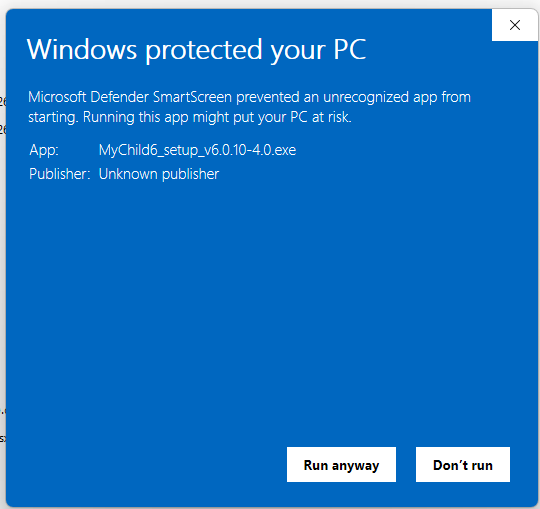
Once you have downloaded the installer, double click and the install should begin. If you are prompted that the application is unsigned, simply click 'Run anyway' and the install will start.
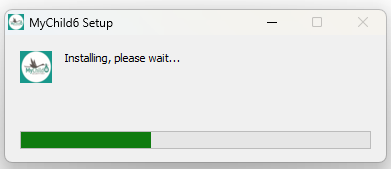
Once the install starts you should see a progress bar like this:
Once the install completes, the application will be started and the initial configuration screen should be displayed, it will look like this:
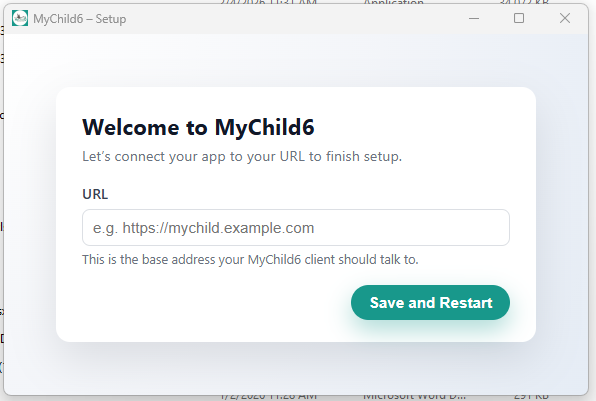
In the box under URL, enter your unique link to access MyChild6 via web.
Example: https://dev.mychildcloud.com and click "Save and Restart".
The application will restart and the MyChild6 application should be displayed upon restart.
No Comments